 By Nick Quirk
August 18, 2026
9 min read
By Nick Quirk
August 18, 2026
9 min read
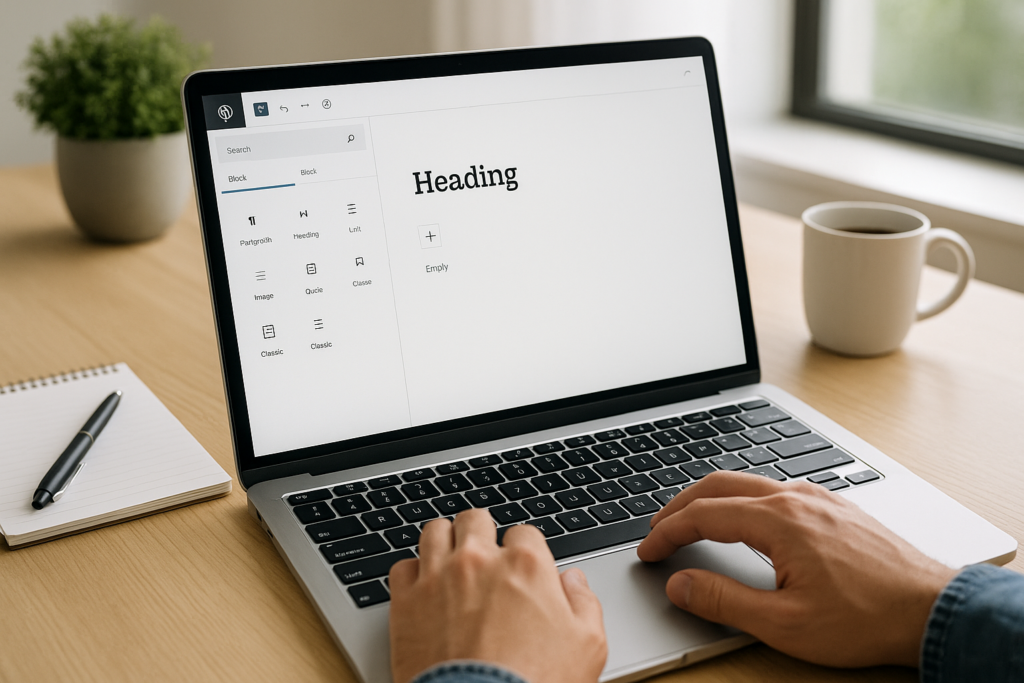
Most people never get past typing paragraphs into WordPress and hitting publish. Learning how to use the Gutenberg block editor like a pro means working with patterns, keyboard shortcuts, block locking and clean heading structure so your pages build faster and rank better. This guide covers the workflow habits that separate a five-minute post from a forty-minute one.
We will also cover something the big tutorials skip: how your block choices affect page speed, crawlability and how search engines read your content. That part matters more in 2026 than any drag-and-drop trick.
What the Gutenberg Block Editor Actually Is
Gutenberg is the default content editor built into WordPress, and it treats every piece of content as a separate block: a paragraph, a heading, an image, a table, a button. Instead of one open text field, you get a stack of movable, individually configurable units. The name comes from the development project; inside WordPress you will usually see it called the block editor.
Two things confuse newcomers. First, the Gutenberg editor that ships with core is stable and complete for normal publishing, while the separate Gutenberg plugin in the WordPress.org repository is a beta channel for features arriving in future releases. Second, the block editor now extends beyond posts into the Site Editor, where headers, footers and templates are also blocks.
If you install the plugin, do it on a staging site. Running beta code on a live client site is how you end up debugging a broken template at 11pm.
Set Up Your Workspace Before You Write Anything
Pro speed comes from configuration, not talent. Spend ten minutes on these settings once and you save hours every month.
- Open List View (the icon that looks like stacked lines, top left). It shows your whole document as a nested outline, which makes reordering and finding a stray group block trivial.
- Turn on Top Toolbar in the Options menu so the block controls stop floating over your text as you scroll.
- Enable Spotlight mode when you are drafting long articles; it dims everything except the block you are editing.
- Check the Preferences panel and disable the welcome guide plus any panels you never touch, like the post format selector.
- Add the Outline view habit: it flags an empty heading level or a jump from H2 to H4 before Google ever sees it.
If you are still finding your way around the admin area generally, our beginner tour of the WordPress dashboard pairs well with this tutorial.
The Shortcuts That Cut Editing Time in Half
Reaching for the mouse to duplicate a block is the single biggest time leak in the WordPress block editor. Learn six shortcuts and your hands stay on the keyboard. On a Mac, swap Ctrl for Command and Alt for Option.
- Type / then a block name in an empty paragraph to insert any block instantly (“/image”, “/columns”, “/table”).
- Ctrl+Shift+D duplicates the selected block, including all its settings.
- Ctrl+K adds a link; Ctrl+Shift+K strips it back out.
- Ctrl+Shift+Alt+M toggles between the visual and code editor, which is how you fix malformed block comments.
- Ctrl+Shift+, hides or shows the settings sidebar for a wider writing area.
- Esc deselects, then arrow keys move you block to block instead of character to character.
Also worth knowing: pasting from Google Docs or Word converts headings, lists and links into native blocks automatically. Paste as plain text with Ctrl+Shift+V only when the source formatting is a mess.
Patterns and Synced Patterns: Stop Rebuilding the Same Layout
Block patterns are pre-built groups of blocks you drop in and edit. Synced patterns (what used to be called reusable blocks) go further: edit one instance and every copy across the site updates. This is where an intermediate user starts working like a professional.
Build a synced pattern for anything that repeats verbatim, such as a lead-magnet callout, an author bio, a disclosure notice or a service-area list. Build an unsynced pattern for structures you reuse but always rewrite, like a three-column feature row or a comparison table shell.
- Select multiple blocks, group them, then choose Create pattern from the options menu.
- Give patterns clear names with a prefix so they sort together in the inserter, for example “CTA – Free Audit” and “CTA – Phone Consult”.
- Use Manage patterns under Appearance or the inserter to audit and delete stale ones every quarter.
- Detach a synced pattern (Options, then Detach) when a single page needs a one-off variation.
A library of ten solid patterns typically cuts new page production from an hour to fifteen minutes, which is why agencies build them before they build content.
Structure Blocks: Group, Columns, Row and Stack
The layout blocks are the ones most people misuse. Group wraps blocks so you can apply one background, padding value or anchor to the set. Row and Stack are flex variations of Group that arrange children horizontally or vertically without the rigidity of columns.
Use Columns only when you genuinely need side-by-side content at desktop width, and check the mobile stacking order afterward. A common mistake is building a two-column hero where the image stacks above the headline on phones, pushing your main message below the fold.
Set spacing with the block-level padding and margin controls rather than empty paragraph blocks or spacer blocks stacked three deep. Cleaner markup means fewer layout shifts, and layout shift is a scored part of Google’s Core Web Vitals.
Lock Blocks Before You Hand a Site to a Client
Open any block’s options menu and choose Lock. You can prevent moving, prevent removal, or both, and applying it to a Group block cascades the choice to its children. For client sites, lock the hero, the pricing table and the footer CTA. It is the cheapest support-ticket prevention available in WordPress.
Where Block Choices Meet SEO and Speed
Here is the gap most Gutenberg tutorials leave open. The editor happily lets you build a page that looks fine and performs badly, so a few rules keep your markup lean.
- One H1 per page. The post title is usually the H1, so your in-content headings start at H2. The Outline panel confirms it in two seconds.
- Use real List and Table blocks instead of faking them with paragraphs and dashes, so search engines and screen readers parse the structure correctly.
- Fill in alt text in the image block sidebar, and let WordPress serve responsive sizes rather than uploading a 4000px photo into a 700px column.
- Avoid nesting groups four levels deep. Every wrapper adds DOM nodes and CSS, and heavy DOM trees drag down interaction metrics.
- Add HTML anchors to key headings in the Advanced panel so you can build jump links and win featured snippets on long guides.
Blocks that pull in external embeds, sliders or animation libraries are the usual speed culprits. If your scores are slipping, work through these actionable ways to improve site loading speed before blaming your host.
The Query Loop block deserves a mention too. It pulls posts dynamically by category, tag or author, which is how you build internal linking hubs that update themselves instead of hand-maintaining a list of related articles.
Advanced Moves Worth Learning Next
Once the basics feel automatic, three areas give the biggest return. First, theme.json: it defines your palette, font sizes and spacing scale so editors pick from approved options instead of typing hex codes. Second, block style variations, which let you register named looks (say, “Outline Button”) that appear in the sidebar. Third, WordPress Gutenberg block development with the official Block Editor Handbook, useful when a client needs a custom block no plugin provides.
You do not need to code to benefit from the first two. A designer who sets a proper theme.json removes most of the visual inconsistency that creeps into multi-author sites.
New sites should get their structure right at the same time. Our guide to the pages every new WordPress site needs is a sensible companion, and local businesses should pair the build with an optimized Google Business Profile in 2026. If you would rather have specialists handle the technical side, there are real advantages to working with a local agency that knows your market.
Frequently Asked Questions
Which is better, Elementor or Gutenberg?
Gutenberg is better for speed and long-term stability, while Elementor offers more design control out of the box. Elementor typically adds 200KB to 500KB of extra CSS and JavaScript per page, and its shortcode-style output makes migration painful later. Choose Gutenberg for content-led sites and blogs; consider Elementor if you need pixel-precise layouts without touching code.
Which editor is best for WordPress?
For the vast majority of sites in 2026, the built-in block editor is the best choice because it is maintained by WordPress core, requires no extra plugin, and produces clean HTML. Page builders make sense for specific design workflows, but every additional builder is another dependency to update, license and eventually replace.
What are the key differences between the Classic editor and Gutenberg in WordPress?
The Classic editor is a single TinyMCE text box, while Gutenberg splits content into individually styled blocks with their own settings. Practically, that means Gutenberg gives you columns, buttons, covers, embeds and reusable patterns without shortcodes or custom fields. The Classic Editor plugin still works, but WordPress support for it is on borrowed time, so new projects should start with blocks.
When should I use the block editor?
Use the block editor for essentially all new posts and pages, and especially for any layout with more than plain text and images. The main exceptions are legacy sites with thousands of Classic-format posts or pages built around a plugin that has not been updated for blocks, where a phased migration is safer than a switch-and-fix approach.
Want Your WordPress Pages Built to Rank?
A tidy block structure is only worth something if the pages behind it are targeting the right searches. Tell us about your site through our contact page and we will look at your current build, page speed and keyword coverage together.