 By Nick Quirk
August 16, 2026
9 min read
By Nick Quirk
August 16, 2026
9 min read
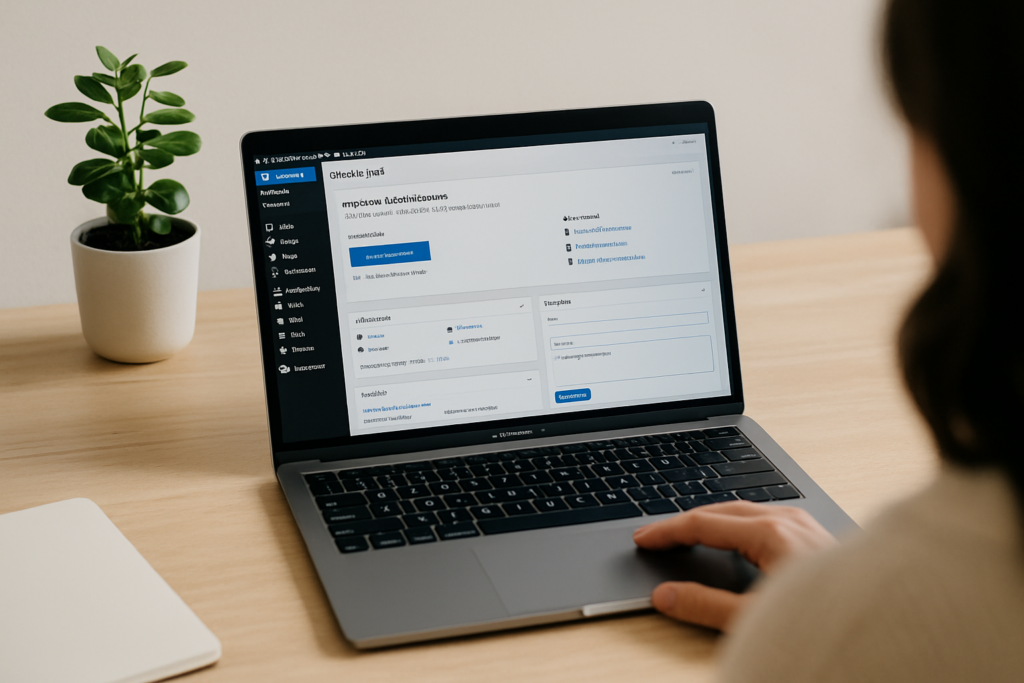
Understanding the WordPress dashboard is the first real hurdle for anyone who has just installed a site and is staring at a screen full of menus. This guide walks through every section of the admin area, explains which settings actually affect your search rankings, and points out the handful of screens you will use almost daily. By the end you should be able to publish a post, install a plugin and fix your permalinks without guessing.
WordPress powers roughly 43% of all websites according to W3Techs usage statistics, so the layout you are about to learn shows up on tens of millions of sites. Learn it once and it transfers everywhere.
What the WordPress Dashboard Is
The dashboard, sometimes called the admin area or wp-admin, is the private control panel behind your public website. Visitors never see it; you use it to write content, change the design, manage users and adjust settings.
You reach it by adding /wp-admin to the end of your domain, so yoursite.com/wp-admin, then entering the username and password created during installation. If you are still deciding between hosted and self-hosted WordPress, our breakdown of WordPress.com versus WordPress.org covers which admin area you will end up with, because the two differ slightly.
The Three Zones of the Screen
Almost everything in wp-admin lives in one of three areas, and once you can name them the interface stops feeling random.
- The admin bar across the top: your site name (click it to view the live site), a comments counter, a plus sign labelled New for quick content creation, and your profile menu on the right.
- The left-hand menu: the vertical navigation with Posts, Media, Pages, Comments, Appearance, Plugins, Users, Tools and Settings. Hovering over each one reveals a fly-out submenu.
- The work area: the large panel in the middle where whatever you clicked actually opens.
The admin bar also appears on the front end of your site while you are logged in, which is handy for jumping straight from a live page into its editor.
The Home Screen and Its Widgets
Clicking Dashboard, then Home, shows a set of movable boxes. At a Glance counts your posts, pages and comments and names your active theme. Activity lists recently published items and the newest comments awaiting moderation.
Two others matter less than they look: Quick Draft saves a rough idea as an unpublished post, and WordPress Events and News pulls in community announcements. Use the Screen Options tab in the top right corner to untick anything you never read, which makes the screen far calmer.
Posts Versus Pages: The Distinction That Confuses Everyone
Both create content, but they behave differently, and choosing wrongly creates structural headaches later.
- Posts are dated, appear in reverse-chronological order on your blog, and support categories and tags. Use them for articles, news and updates.
- Pages are static and undated, sit outside the blog feed, and are meant for content like About, Services, Pricing and Contact.
- Categories and tags apply only to posts. Aim for five to ten broad categories rather than fifty, since a bloated taxonomy creates thin archive pages that compete with each other.
Inside either editor you get the block editor, where each paragraph, image, heading or button is a separate block added with the plus icon. The right-hand sidebar holds the settings that matter for publishing: URL slug, featured image, excerpt, category and visibility.
Media, Comments and Users
Media stores every image, PDF, video and audio file you upload. Click any image to add alt text, which search engines and screen readers rely on, and to copy its file URL. Keep uploads under about 200KB each where you can, because oversized images are the single most common cause of slow WordPress pages.
Comments is your moderation queue, split into Pending, Approved, Spam and Trash. If a new site suddenly attracts dozens of comments in a week, it is almost certainly spam, so install an anti-spam plugin before you open comments widely.
Related reading: How to Install and Configure WordPress in Under 10 Minutes.
Users controls who else can log in. WordPress ships with five roles, and handing out the wrong one is a genuine security risk.
- Administrator: full control, including deleting the site. Keep this to one or two people.
- Editor: publishes and edits anyone’s content, but cannot touch plugins or settings.
- Author: publishes and edits only their own posts.
- Contributor: writes drafts but cannot publish.
- Subscriber: reads and manages their own profile only.
Appearance: Themes, Menus and the Customizer
Appearance controls how the site looks. The Themes screen lets you install and activate a design, and switching themes changes layout site-wide without deleting your content.
What appears underneath Themes depends on your theme type. Block themes show a single Editor item that opens the full site editor, where headers, footers and templates are edited with the same blocks used in posts. Classic themes instead show Customizer, Widgets and Menus, with navigation built by dragging pages into a menu and assigning it to a location such as Primary.
Resist the urge to install five themes and keep them all. Delete the ones you are not using, since inactive themes still need security updates.
Plugins: Powerful, and Easy to Overdo
Plugins add features WordPress does not include out of the box: contact forms, SEO tools, backups, caching, e-commerce. The official WordPress plugin directory lists tens of thousands of free options, and you can search and install them without leaving the dashboard.
Before installing anything, check three things: the last updated date (within the past six months is a reasonable bar), the active installation count, and whether it lists compatibility with your WordPress version. Most small business sites run well on eight to fifteen plugins; past roughly twenty five, conflicts and performance problems get noticeably more likely.
Note that some managed hosts restrict which plugins you may install, particularly caching and backup tools they already provide. Our guide to choosing the best WordPress hosting provider explains how those restrictions differ between plans.
Settings: The Screens That Affect SEO
Settings is the least glamorous menu and the one beginners most often skip, which is unfortunate because two of its subpages directly influence how your site is crawled.
- Settings, General: your site title and tagline, both of which can appear in browser tabs and search results. Change the default tagline (“Just another WordPress site”) immediately.
- Settings, Reading: choose whether the homepage shows your latest posts or a static page. This screen also holds the Search engine visibility checkbox, which blocks indexing when ticked. Leaving it ticked after launch is the classic reason a new site never appears in Google.
- Settings, Permalinks: sets your URL structure. Pick Post name so URLs read yoursite.com/dashboard-guide rather than yoursite.com/?p=147.
- Settings, Discussion: comment rules, moderation thresholds and notification emails.
- Settings, Media: the pixel dimensions WordPress generates for thumbnails and medium images.
Change permalinks once, ideally before publishing. If you change them on an established site, every existing URL breaks, and you will need 301 redirects to catch the 404 errors that follow.
Tools and Updates
Tools handles imports and exports, so you can move content in from another platform or download an XML backup of your posts. Site Health, found under Tools, runs automated checks and grades your setup, flagging things like an outdated PHP version or missing background updates.
The Updates screen, sitting under Dashboard, lists pending core, theme and plugin updates. Apply security updates promptly, take a backup first, and check the site afterwards. Sites that sit six months behind are the ones that get compromised.
Your First Five Moves in a New Dashboard
- Set permalinks to Post name and confirm search engine visibility is unticked.
- Update the site title and tagline under General.
- Delete the sample “Hello world!” post and the default Sample Page.
- Install an SEO plugin and a backup plugin, then run one manual backup.
- Connect Google Search Console and submit an XML sitemap.
The official WordPress documentation covers each of these in detail if you want the long version. When you are closer to going live, work through our launch checklist for a new WordPress site, and if you want to understand what happens behind the interface, start with technical SEO basics.
Frequently Asked Questions
How do I log in to my WordPress dashboard?
Add /wp-admin or /wp-login.php to your domain, so yoursite.com/wp-admin, and enter the username and password set during installation. If you forgot the password, use the “Lost your password?” link, which emails a reset to the address on the account. Some security plugins move the login URL, in which case your host or developer can tell you the custom path.
What is the difference between a post and a page in WordPress?
Posts are dated, appear in the blog feed and support categories and tags, while pages are static, undated and stand alone. Use posts for articles and news, pages for About, Services and Contact. Both are edited in the same block editor, so the workflow feels identical.
How many plugins are too many?
There is no fixed cap, but most small business sites run comfortably on eight to fifteen plugins, and problems climb noticeably past about twenty five. Plugin quality matters more than raw count: one poorly coded plugin can slow a site more than a dozen well-built ones. Deactivate and delete anything you are not actively using.
Why can I not see the same menus as other tutorials?
Menu differences usually come down to your user role, your theme type or plugins that add their own items. Non-administrators lose access to Plugins, Users and Settings entirely, and block themes replace Customizer, Widgets and Menus with a single site editor. Plugins also insert new top-level entries, which is why no two dashboards look quite the same.
Is the WordPress dashboard the same as cPanel?
No. The WordPress dashboard manages your website’s content and settings, while cPanel is a hosting control panel for domains, email accounts, databases and file management. You will normally use the WordPress dashboard weekly and your hosting panel only a few times a year.
Want a Second Pair of Eyes on Your WordPress Setup?
If your dashboard is already installed but you are not sure the settings, plugins and permalinks are working in your favour, SEO Quirk can review it and tell you what to fix first. You can also read why working with a local agency tends to get sites fixed faster than a support ticket queue.