 By Nick Quirk
September 1, 2026
10 min read
By Nick Quirk
September 1, 2026
10 min read
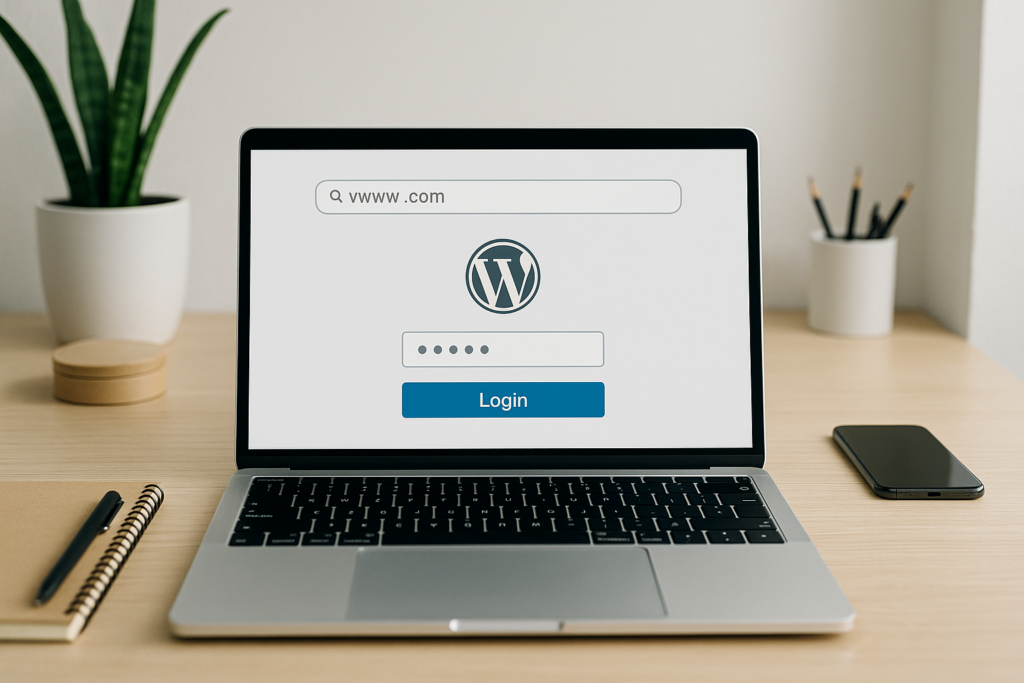
If your access logs are full of hits on /wp-login.php from IP addresses in a dozen countries, you are seeing automated credential stuffing in action. Learning how to change your WordPress login URL to stop bots takes about five minutes and removes the single easiest target on your site. This guide covers the plugin route, the plugin-free route, the cache and CDN checks most tutorials skip, and exactly what to do if the new login page does not load.
What WordPress Uses by Default
Every standard WordPress install answers at two predictable addresses: yoursite.com/wp-login.php and yoursite.com/wp-admin. The second one simply redirects unauthenticated visitors to the first. That predictability is the whole problem, because a scanner does not need to guess where your login page lives.
Bots also probe /login, /admin and /wp-admin/admin-ajax.php on the off chance a redirect or plugin exposes them. Small sites commonly log between 200 and 5,000 failed login attempts per month with no promotion at all. Credential abuse has sat near the top of the Verizon Data Breach Investigations Report attack-vector rankings for years, and WordPress is simply the largest available target.
Why Changing the Login URL Actually Helps
Renaming the login endpoint is security through obscurity, and critics on Reddit and elsewhere are right that it is not encryption. It is still worth doing, because most attacks against WordPress are dumb, high-volume and cheap to run.
- Traffic drops immediately. Scanners hitting a 404 move on rather than queueing thousands of password guesses.
- Server load falls. Each
wp-login.phprequest boots WordPress fully, so blocking them at the URL level saves real PHP cycles on shared hosting. - Your logs become readable. Once the noise stops, a handful of attempts against your custom login path is a signal worth investigating.
- Layer, do not replace. Combine the change with rate limiting and two-factor authentication in WordPress so a leaked password alone is not enough.
What it will not do: stop targeted attacks, patch a vulnerable plugin, or protect you if a bot already knows your username from author archives. Treat the rename as one item on a broader hardening list, not the finish line.
Before You Touch the Login URL
Locking yourself out is the realistic risk here, and it happens most often on sites with aggressive caching or an unusual server configuration. Spend ten minutes on preparation.
- Take a full backup of files and database, and confirm you can actually restore it.
- Verify a second admin account exists with a working email address you can reach.
- Confirm you have FTP/SFTP or file manager access plus database access through phpMyAdmin. This is your escape hatch.
- Note anything that logs in programmatically: the WordPress mobile app, Jetpack, uptime monitors, a headless front end, or a backup service.
- Pick a URL slug you will remember but nobody will guess, such as
/office-door-7742. Avoid/login,/secureand/backend, which are all on standard wordlists.
Do this on a staging copy first if you run a store or membership site, since login flows there touch checkout and account pages. If your site is already behaving oddly, work through our step-by-step guide to cleaning a hacked WordPress site before hiding anything.
Method 1: Use a Plugin (Right for Most Sites)
For 90 percent of sites, a small dedicated plugin is the sensible choice because it hooks into WordPress properly and reverts cleanly. WPS Hide Login remains the most widely used option, with well over a million active installations and a settings screen that is a single field.
Steps with WPS Hide Login
- Install and activate WPS Hide Login from Plugins, Add New.
- Go to Settings, General and scroll to the bottom for the Login URL field.
- Enter your new slug, then set the Redirection URL for anyone hitting
wp-adminwhile logged out (a 404 is better than a redirect to your homepage, because it gives bots less feedback). - Save changes. WordPress logs you out and shows the new address, so copy it into your password manager before closing the tab.
- Test in a private browsing window: the new URL should load the form, and
/wp-login.phpshould return 404.
The plugin does not rename any files. It intercepts requests, which means deactivating it restores the default WordPress login address instantly, a useful property when something breaks.
If You Already Run a Security Suite
Do not stack two tools doing the same job. Most suites include the feature already:
- Solid Security (formerly iThemes): Security, Settings, Hide Backend.
- All In One WP Security: Brute Force, Rename Login Page.
- WP Cerber and Shield Security: both offer a custom login slug plus request throttling.
- Wordfence: notably does not include a login URL rename. Wordfence focuses on firewall rules, rate limiting and 2FA, so pair it with WPS Hide Login if you want both. That answers the common “Wordfence change login URL” search: you need a second plugin or a server rule.
If you are choosing between suites, our roundup of the best WordPress security plugins to keep hackers out compares firewall quality, scanning and support terms.
Method 2: Change the Login URL Without a Plugin
Server-level rules run before PHP loads, so they are faster and harder to bypass. They are also the option that locks people out, so keep an open SFTP session while you test.
Apache (.htaccess rewrite)
Add this above the standard WordPress block in your root .htaccess, replacing the slug:
RewriteRule ^office-door-7742/?$ /wp-login.php [QSA,L]
That creates the friendly path but leaves the original file reachable, so most administrators pair it with HTTP basic authentication on wp-login.php through a .htpasswd file. A second password prompt at the web server layer stops bots before WordPress runs, which is stronger than any obscurity trick.
Nginx
On Nginx you would add a location block that rewrites your slug to /wp-login.php and returns 404 for direct requests to the default path. Managed hosts often override server config, so check with support first, and read the official WordPress hardening documentation for the sanctioned patterns.
A Note on functions.php Snippets
Snippets that rewrite login URLs inside a theme’s functions.php break the moment you switch or update a theme. If you must use code, place it in an mu-plugin at wp-content/mu-plugins/ so it survives theme changes and cannot be deactivated accidentally.
Cache and CDN Checks Nobody Mentions
This is where the rename usually goes wrong. Page caches and CDNs are configured to exclude wp-login.php and wp-admin by name, so a brand new slug can get cached and served as a stale page, or served to the wrong session entirely.
- Add your new slug to the never cache these pages list in WP Rocket, LiteSpeed Cache, W3 Total Cache or your host’s built-in cache.
- In Cloudflare, confirm no Page Rule or Cache Rule matches the new path, and check that any “cache everything” rule excludes it.
- Purge every cache layer, then test in a browser that has never visited the site.
- Verify the login form actually submits, not just that it renders. A cached nonce produces the “are you sure you want to do this” error.
If you are unsure which layer is holding the page, our breakdown of the best WordPress caching plugins explains where each one stores content and how to flush it properly.
Post-Change Testing Checklist
- Old URL returns 404, not a redirect that leaks the new one.
- New URL loads over HTTPS with a valid certificate.
- Password reset emails arrive and the reset link works.
- Logout returns you somewhere sensible rather than a broken page.
- WooCommerce or membership account pages still function for customers.
- Uptime monitors and backup services still authenticate.
If the New Login URL Fails
Recovery is straightforward as long as you can reach the file system. Rename the plugin folder (for example wp-content/plugins/wps-hide-login to wps-hide-login-off) over SFTP, which deactivates it and restores /wp-login.php at once.
For a server-level rule, comment out the lines you added to .htaccess and reload the page. If a security suite is the culprit and you cannot identify which setting caused it, disable all plugins by renaming the plugins directory, log in, then re-enable them one at a time.
Close the Other Doors Bots Use
A hidden login form is not much use if the same credentials can be tried elsewhere. Bots routinely target endpoints that have nothing to do with the visible page.
- XML-RPC: disable
xmlrpc.phpunless you need the mobile app or Jetpack, since it allows batched password guesses in a single request. - Author enumeration: block
/?author=1and the REST users endpoint so usernames stay private. - Rate limiting: lock out an IP after 3 to 5 failed attempts. Our guide on protecting WordPress from brute force attacks covers sensible thresholds.
- Roles: give editors editor accounts. Fewer administrators means fewer high-value targets.
- Updates: most real compromises come through outdated plugins, not guessed passwords.
Frequently Asked Questions
How can I change the login URL in WordPress?
Install a plugin such as WPS Hide Login, then set your new slug under Settings, General in under two minutes. The alternative is a server-level rewrite in .htaccess or Nginx config, which is faster but riskier because a typo can lock everyone out until you edit the file back.
Can I change the URL of my WordPress site?
Yes, you change the site address in Settings, General by updating the WordPress Address and Site Address fields, or in wp-config.php. Plan for 301 redirects and an updated sitemap afterwards, because a domain or protocol change without redirects can cost you rankings for weeks.
How do I change the WP admin URL?
/wp-admin is a directory, so you do not rename it directly. Instead you rename the login endpoint and set the plugin or rule to return a 404 when a logged-out visitor requests wp-admin, which effectively hides the whole admin entry point.
What is the default URL for WordPress login?
The default is yourdomain.com/wp-login.php, with yourdomain.com/wp-admin redirecting to it. Both are identical on millions of installs, which is exactly why automated scanners find them within hours of a new site going live.
Does hiding the login page hurt SEO?
No, because login pages carry a noindex directive and are not meant to rank. The only indirect benefit is performance: fewer bot requests means more server capacity for real visitors and crawlers.
Will a Chrome extension change my login URL?
No. Searches around Chrome usually come down to saved bookmarks or password manager entries, so update those after the change; the URL itself only changes server side.
Want Someone to Harden Your Site For You?
If you would rather not test rewrite rules on a live site, SEO Quirk can handle the login rename, rate limiting, 2FA and cache exclusions in one pass, then hand you the documentation. There are also good reasons to keep this work with a local agency that answers the phone when a site goes down.