 By Nick Quirk
August 30, 2026
9 min read
By Nick Quirk
August 30, 2026
9 min read
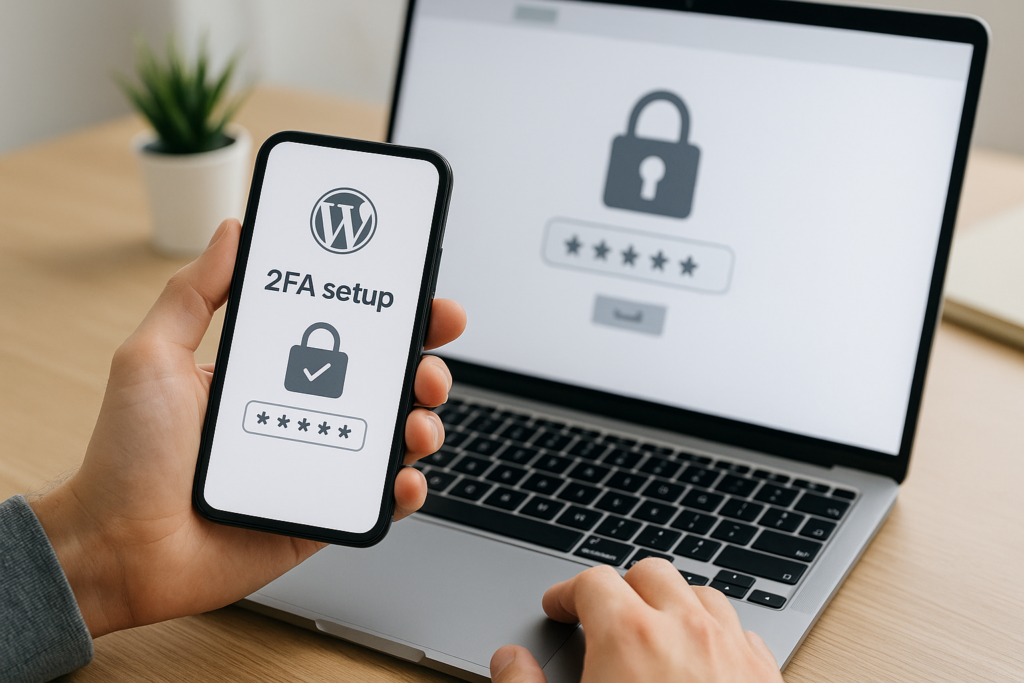
Learning how to set up two-factor authentication (2FA) in WordPress takes about ten minutes, and it blocks the single most common way sites get breached: a stolen or guessed password. You install a 2FA plugin, scan a QR code with an authenticator app on your phone, save your backup codes, then enforce the same rule for every administrator account. This guide walks through the plugin route, the no-plugin route, and the part most tutorials skip, which is what to do when someone gets locked out.
Passwords alone stopped being enough years ago. The U.S. Cybersecurity and Infrastructure Security Agency reports that multi-factor authentication makes accounts significantly harder to compromise, and for a WordPress admin login that faces the open internet, that second factor is the difference between a nuisance and a full site takeover.
What Two-Factor Authentication Actually Does
Two-factor authentication, sometimes called two-step authentication, asks for two different kinds of proof before letting anyone into /wp-admin. The first is something you know (your password). The second is something you have, usually a rotating six-digit code from an app on your phone or a hardware security key.
That second factor matters because credential stuffing bots do not steal one password at a time. They test millions of leaked username and password pairs against login forms, and a site with 2FA enabled simply refuses them even when the password is correct. If bots hammering your login page are already a problem, pair this with the tactics in our guide on protecting your WordPress site from brute force attacks.
Common second factors, roughly in order of how secure they are:
- Passkeys and hardware keys (WebAuthn/FIDO2): phishing-resistant, and the direction most of the industry is moving in 2026.
- TOTP authenticator apps: Google Authenticator, Authy, 1Password, Microsoft Authenticator, or the built-in verification codes on an iPhone.
- Email codes: better than nothing, but only as strong as the mailbox behind them.
- SMS codes: convenient, though NIST has discouraged SMS as a primary factor because of SIM-swap risk.
Step 1: Install a 2FA Plugin
WordPress core does not ship with two-factor authentication turned on, so you need a plugin. From your dashboard, go to Plugins > Add New, search for your chosen tool, click Install Now, then Activate. The whole step takes under two minutes on a normal host.
These are the options we recommend most often, and why:
- Two-Factor (by the WordPress contributor team): free, lightweight, supports TOTP, email codes, backup codes and FIDO2 security keys. Roughly 60,000 active installs and no upsells.
- WP 2FA by Melapress: the friendliest setup wizard of the group, with a free tier that lets you force 2FA by user role and set a grace period of, say, three days before it becomes mandatory.
- Wordfence Login Security: a standalone plugin that gives you Wordfence 2FA and reCAPTCHA without the full firewall suite. Good if you already run Wordfence.
- Solid Security (formerly iThemes Security): bundles 2FA with passwordless login and trusted device rules.
If you want a wider comparison before committing, read our roundup of the best WordPress security plugins to keep hackers out. Avoid stacking two plugins that both handle authentication, since overlapping login hooks are a classic source of WordPress plugin conflicts.
Step 2: Set Up Your Authenticator App
Once the plugin is active, go to Users > Profile (or the plugin’s own setup wizard) and find the two-factor section. Tick the box for Time Based One-Time Password (TOTP) and a QR code appears on screen.
On an iPhone, you have two paths. Open your authenticator app of choice and tap the plus icon to scan the code, or use Apple’s built-in option by adding the site to Passwords and choosing Set Up Verification Code, which puts the rotating code right next to your saved password. Android users follow the same flow in Google Authenticator or Authy.
After scanning, the app shows a six-digit code that changes every 30 seconds. Type that code back into WordPress and click Submit or Save Changes. If the code is rejected, the usual culprit is clock drift: check that your phone and your server are both syncing time automatically, because TOTP tolerates only about 30 to 60 seconds of skew.
Step 3: Generate and Store Backup Codes
This is the step people skip, and then they email us in a panic three months later. Every serious 2FA plugin will generate a set of ten single-use backup codes. Generate them now.
Store them somewhere that is not your phone and not a sticky note on the monitor:
- A password manager vault entry attached to the same site login.
- A printed copy in a locked drawer for agencies managing client sites.
- An encrypted note shared with one trusted colleague, so a single lost phone does not freeze the business.
Each code works once. When you are down to your last two or three, regenerate the set from your profile, which invalidates the old batch immediately.
Step 4: Enforce 2FA for Every Admin, Not Just You
Here is the gap in most tutorials: securing your own account does nothing if a freelance developer, a former contractor, or an editor with an upgraded role still logs in with a password alone. Attackers go after the weakest account on the site, not the most important one.
In WP 2FA and Solid Security you can require two-factor authentication by user role. A sensible policy for a business site looks like this:
- Administrator and Editor: 2FA mandatory, no exceptions, no grace period after the first week.
- Author and Contributor: 2FA required if they publish or upload files.
- Subscriber and customer accounts: optional, unless the site stores payment or health data.
- Dormant accounts: delete or demote them rather than leaving admin access parked.
Set a grace period of three to seven days so nobody is locked out mid-project, and send a short email explaining the change before you flip the switch. Our guide to managing WordPress users, roles and permissions covers how to audit who actually has access before you start.
Locked Out? How to Reset or Disable 2FA
Lost phone, wiped device, backup codes gone: it happens, and the fix is straightforward if you have hosting access. Three options, from least to most disruptive:
- Another administrator resets it: an admin can open the affected user’s profile and clear their two-factor settings, then the user re-enrols.
- Deactivate the plugin over SFTP: rename the plugin folder inside
/wp-content/plugins/(for example,wp-2fatowp-2fa-off). WordPress deactivates it automatically and you can log in normally. - Clear the user meta in the database: in phpMyAdmin, delete the plugin’s 2FA rows from
wp_usermetafor that user ID. Take a database backup first.
If you are moving to a new phone deliberately, disable two-factor on the old device only after you have scanned the new QR code and confirmed a working code. Doing it in the reverse order is how people end up in the database.
Can You Enable 2FA Without a Plugin?
Yes, though it is rarely worth it. You can write your own implementation by hooking into authenticate or wp_login, generating a TOTP secret per user with a PHP library such as RobThree/TwoFactorAuth, storing it in user meta, and rendering an interstitial code form after password validation. Managed platforms like WordPress VIP handle 2FA at the platform layer instead, and some hosts add it at the control panel level.
For custom code, follow the TOTP spec (RFC 6238) and the guidance in NIST Special Publication 800-63B on authenticator lifecycle and rate limiting. Realistically, a maintained free plugin gives you the same protection with security patches you do not have to write yourself.
Where 2FA Fits in Your Wider Security Setup
Two-factor authentication closes the login door, but it does not patch an outdated plugin or restore a hacked database. Treat it as one line item on the ultimate WordPress security checklist, alongside automatic updates, offsite backups and a web application firewall.
Once security is handled, the rest of your WordPress housekeeping gets easier to prioritise, from setting up breadcrumbs for better navigation to speed work. And if you would rather have someone local handle maintenance and search visibility together, there are real benefits to working with a local agency that knows your site rather than a ticket queue.
Frequently Asked Questions
How do you set up two-factor authentication (2FA)?
Install a 2FA plugin, open Users > Profile, enable TOTP, scan the QR code with an authenticator app, enter the six-digit code to confirm, then save your backup codes. The whole process takes roughly 5 to 10 minutes per user account and requires no code.
What is the best two-factor authentication plugin for WordPress?
For most sites, WP 2FA is the best free option because it includes role-based enforcement and a setup wizard, while the core-team Two-Factor plugin is the lightest at around 60,000 installs. Wordfence Login Security is the better pick if you already run Wordfence for firewall and malware scanning.
Can I enable two-factor authentication in WordPress without using a plugin?
Yes, but it requires custom PHP that hooks into the authentication flow and implements the TOTP standard (RFC 6238) yourself. Enterprise platforms such as WordPress VIP and some managed hosts provide 2FA at the platform level, which is the only common no-plugin route for non-developers.
How can I create my own two-factor authentication?
Generate a base32 secret per user with a vetted PHP TOTP library, store it encrypted in user meta, then intercept login with the authenticate filter to demand a valid code before issuing a session. Budget 8 to 20 developer hours including backup codes, rate limiting and lockout recovery, which is why most teams use a maintained plugin.
Does 2FA slow down logging in every single time?
It adds about 5 to 10 seconds per login, and most plugins offer a “remember this device” option for 14 to 30 days so you are not entering a code daily. Keep that window shorter on shared or public computers.
Want your WordPress login locked down properly?
If you would rather have 2FA, user role auditing and a full security review done for you across your site, SEO Quirk can set it up and document the recovery process for your team. Send over your site URL and we will tell you where the gaps are.